
Feel the chords,
no keyboard needed.
The same chord never sounds quite the same.
Press, listen, and find the sound you were after.
Made by a saxophonist, for his own practice.
When you transcribe
Not sure the chord you heard is right? Put it on a button and play it along with the record. Once it fits, loop the changes and work out the melody on top.
When you write
Hear a progression the moment it comes to you, without sitting down at a keyboard. Try different extensions, and when it works, save it as a chord chart.
When you study
Pick a key and its seven chords are loaded for you. Each chord shows its chord tones and a scale that fits, so it all sinks in as you play.
Press for a chord. Loop it for a backing track.
You don't need to know chord names. Just pick a key.
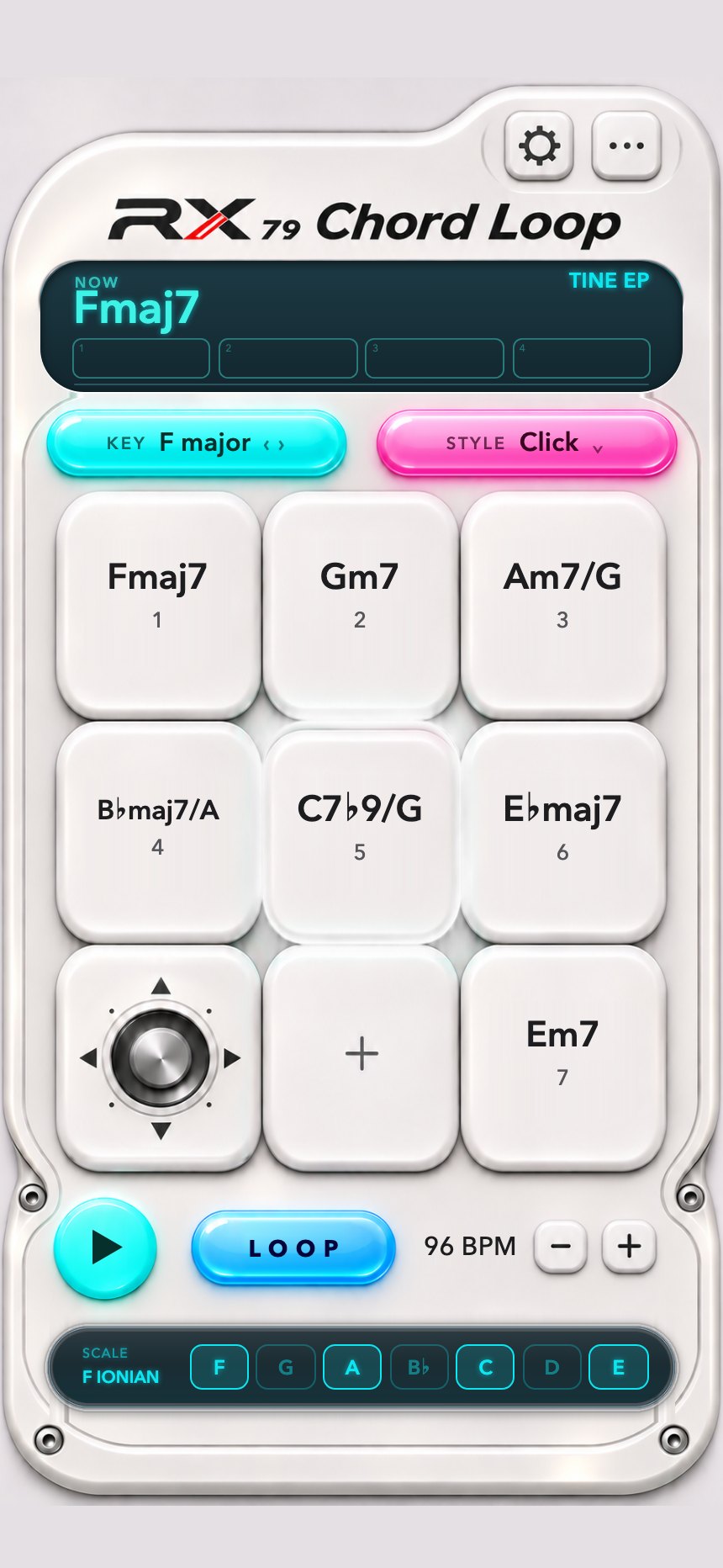
Seven chord buttons
The chord sounds for as long as you hold the button. All twelve keys, major and minor. You can also change any button to the chord you want and save it as your own set.
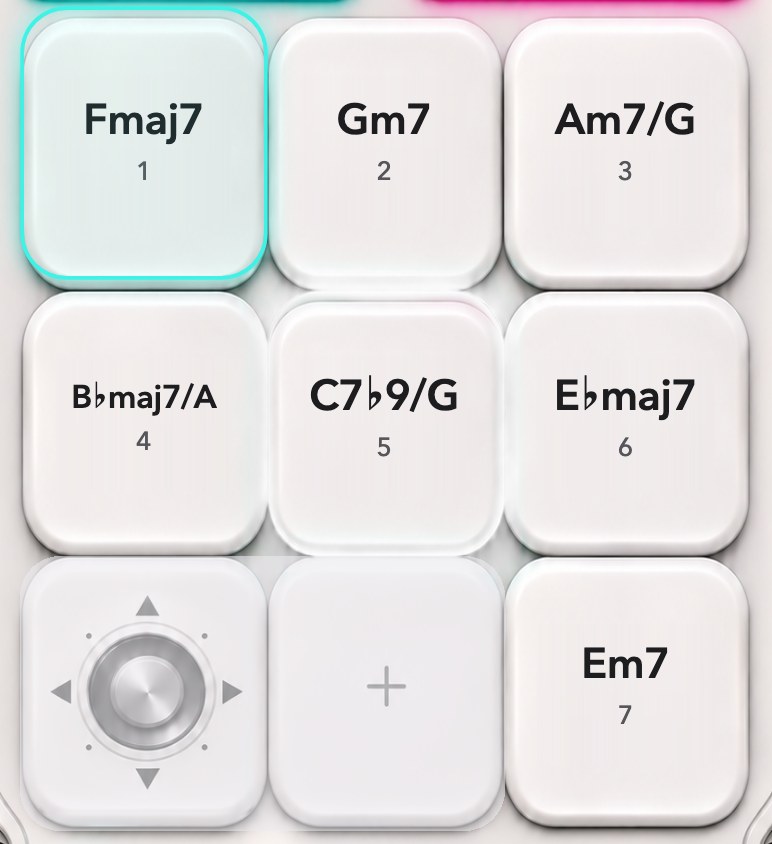
Change the color with the joystick
Hold the joystick in a direction and press a button: the same chord takes on a different color. You decide which variation each direction gives you.
Build a backing track with LOOP
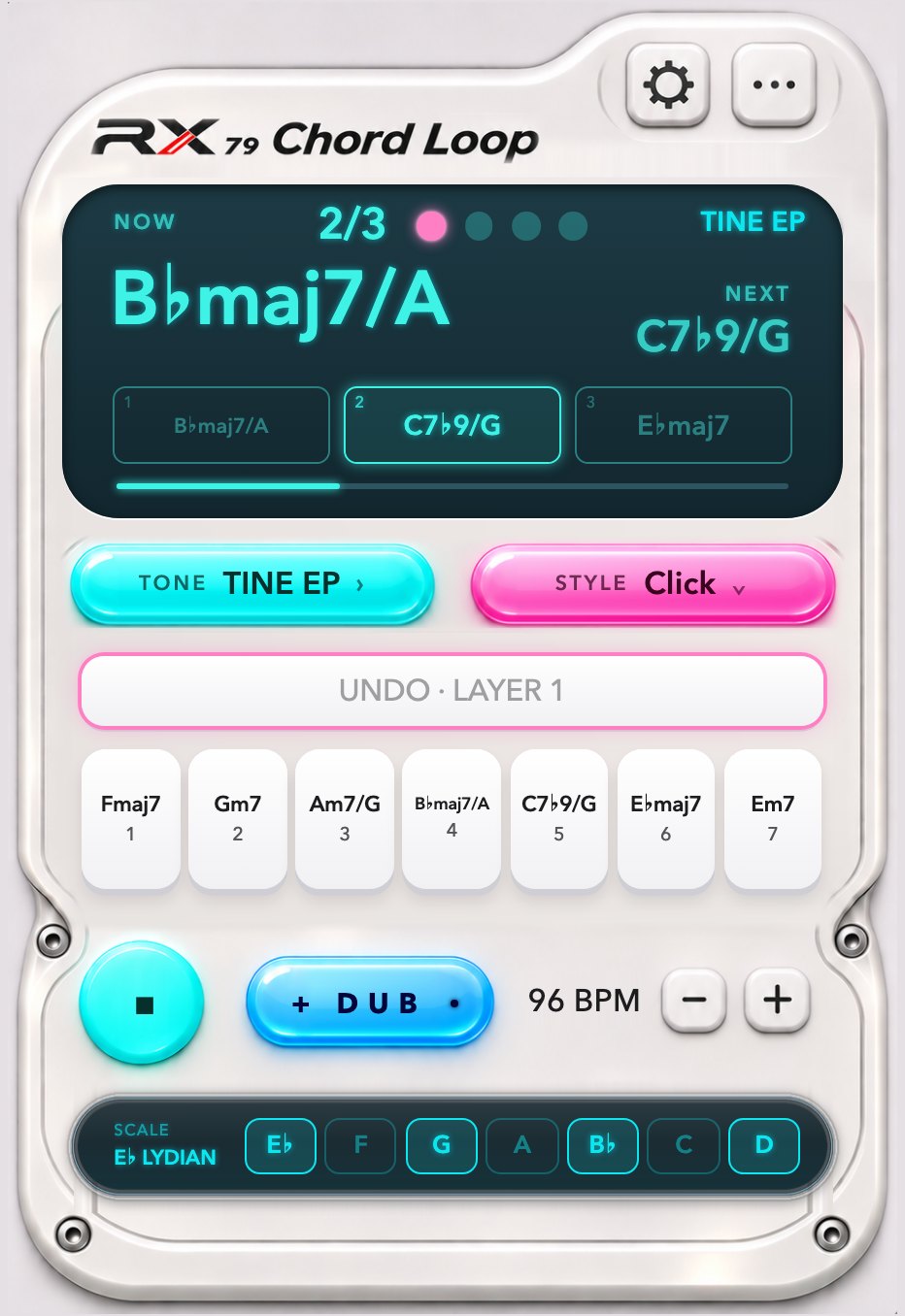
Tap LOOP, play your chords in order, tap LOOP again. What you just played keeps going around. The top of the screen shows the current chord, the next chord, and the beat. Pick a rhythm and drums come in too.
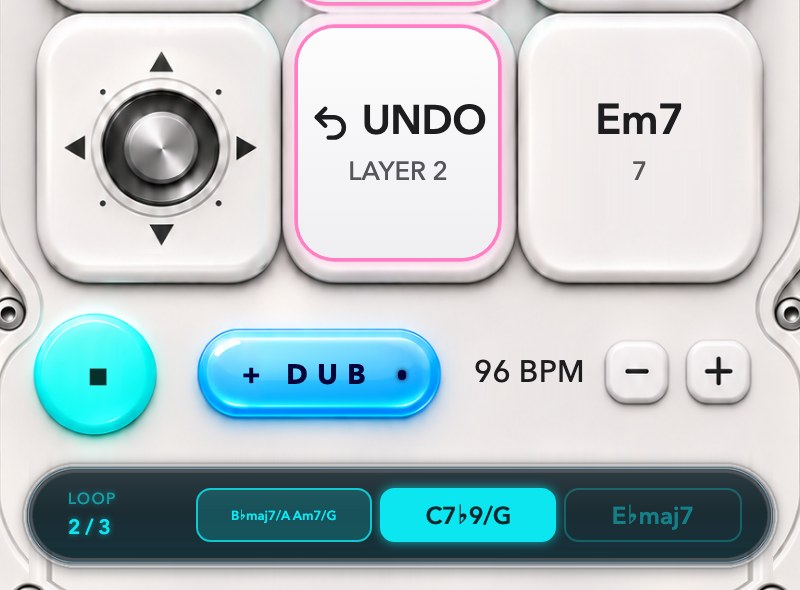
Overdub, undo, redo
Add more chords on top while the loop is running. If you don't like it, UNDO removes only what you just recorded, and REDO brings it back. The loop never stops. Tap a bar in the bottom row to jump back to that bar.
Six sounds, six rhythms
Electric piano, pad, organ, bell, funk guitar, and a sampled bass guitar. Tap the sound name at the top to switch. Leave a loop running and flip through sounds to hear the difference.
Rhythms
From a plain metronome click to drum grooves by genre. Nudge the tempo up or down on screen, or tap it in.
Touch velocity
Turn it on and harder taps sound louder and brighter, lighter taps softer and mellower.
On iPad,
chord editing sits alongside
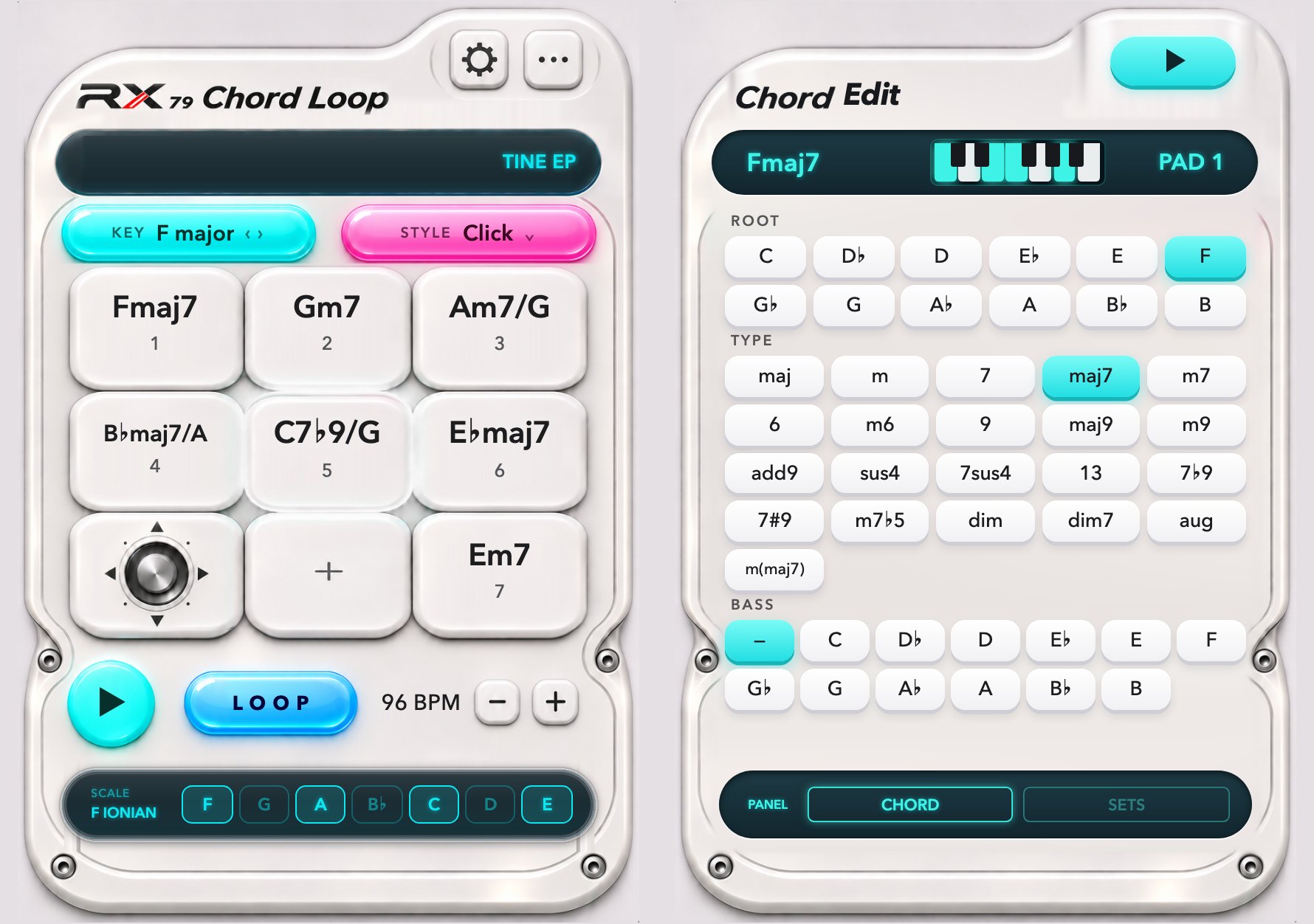
In landscape, the instrument is on the left and the chord editor on the right. Tap through roots, chord types, and bass notes while you listen, then drop the one you like straight onto a button. In portrait, the instrument fills the screen.
- Notes to play right now The bottom row shows a scale that fits the current chord, with chord tones lit up.
- Any screen From a small iPhone to an iPad, the layout adapts to your screen.
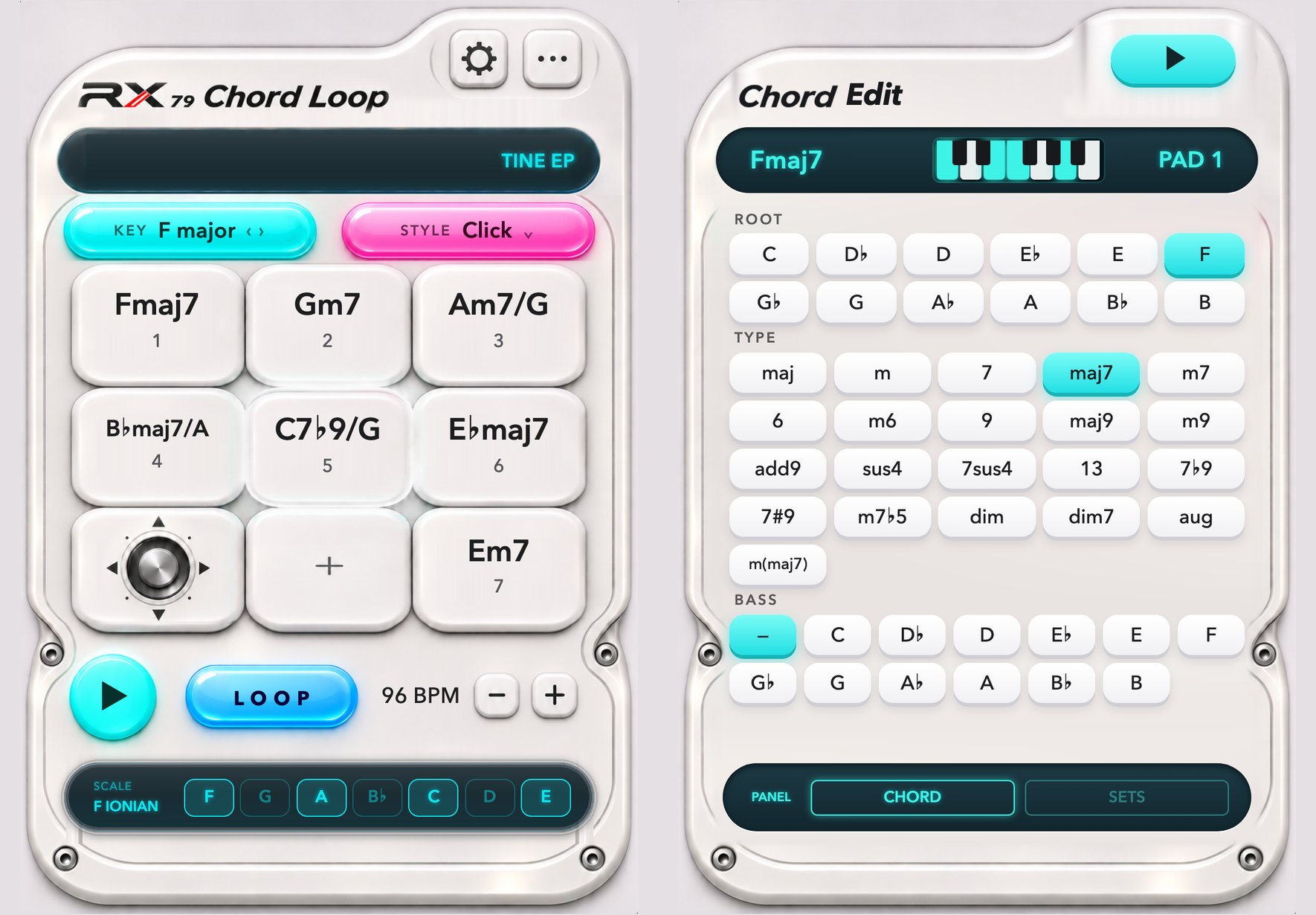
Folded, it's a player.
Unfolded, a chord editor.
Fold your iPhone Duo and you get a player with the current and next chord in large type. Unfold it and the chord editor opens beside the instrument.
Save your progression
as a chord chart
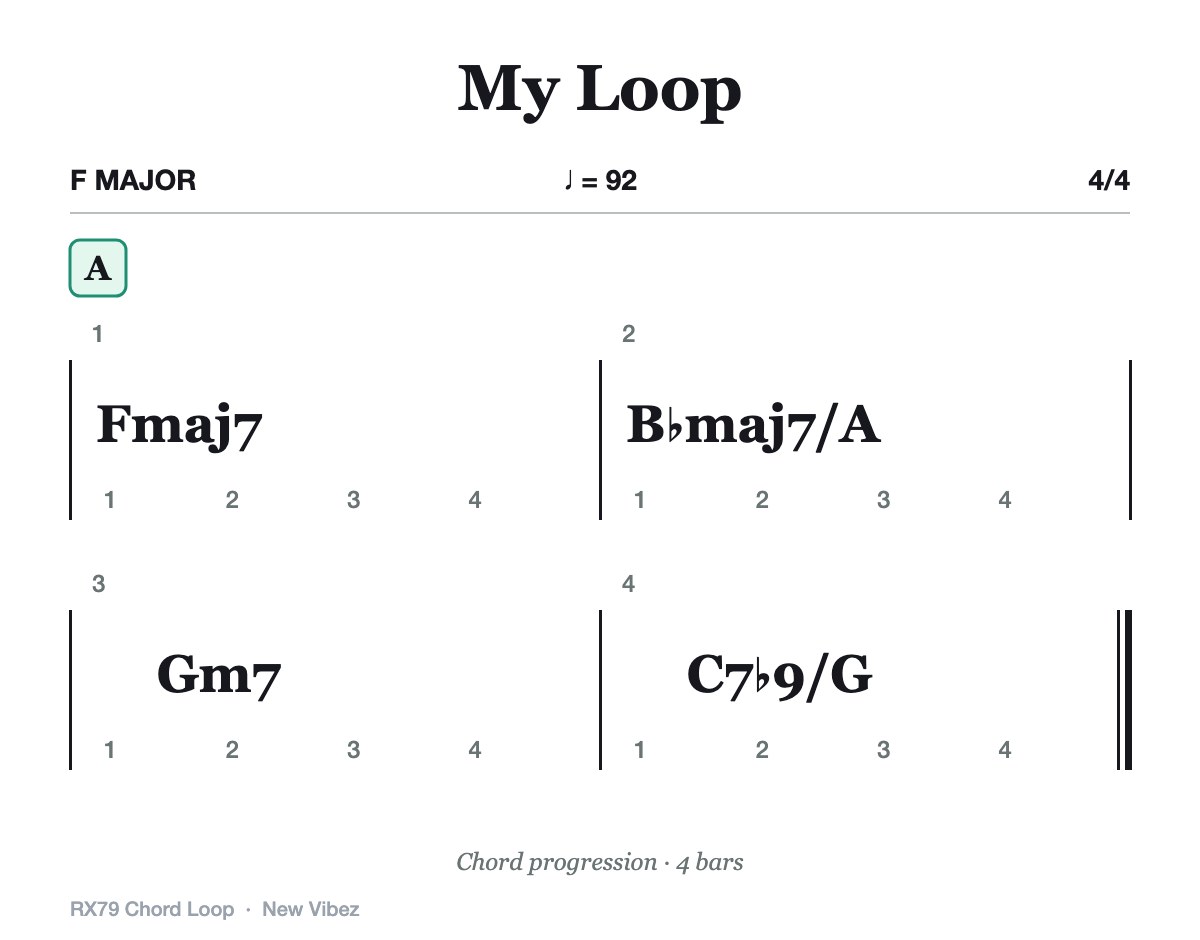
The progression in your loop is laid out bar by bar as a chart. Post it straight to your band's group chat, or send it to a notation app and keep writing.
- Save as image Goes straight to your Photos.
- Band Session Note file Open it in the notation app Band Session Note (BSN) to add notes and lyrics and finish it as a proper score.
- Copy as text Paste it into a note or a message.
- Your seven chords on one page A one-page summary of the chords used in this tune.
Never started because
you don't know chords?
You don't need to play piano. Press a button, listen, and get to know chords one at a time.
No chord names needed
Pick a key and its seven chords are loaded for you. The names will come as you play.
One hand is enough
The buttons are big, so one finger is all you need. Once a loop is running, both hands are free to sing or pick up your instrument.
No account, no internet
Chord sets and settings are stored only on your device. Available in six languages.
Support
Stuck on something? Send us an email. Include your device model and the number at the bottom of the Settings screen and we can help faster.
[email protected]There's no sound.
Turn the volume up with the buttons on the side. The app plays even when the silent switch is on. If there's still nothing, fully quit the app and open it again.
Can I use my own chords?
Yes. Tap the + button at the bottom center to set the root, chord type, and bass note for each button. Name and save the set, and load it whenever you play that tune.
How do I exit a loop?
Stop the loop with the round button and the LOOP button changes to EXIT. Tap it. You can also press and hold the LOOP button.
I only want to erase my overdub.
While a loop is running, the button at the bottom center becomes UNDO. Tap it to remove only your last take. The button then turns into REDO, so you can bring it back.
Can I see it in my instrument's key?
Choose a C, B♭, E♭, or F instrument and chord names and scales are shown transposed for you. The sound stays at concert pitch.
I can't save the image.
The first time you save, you need to allow access to Photos. If you declined, turn on Photos access for this app in iPhone Settings.
Do you collect personal data?
No. There are no accounts and no servers, and all settings stay on your device. See our Privacy Policy for details.